5 min read
Power BI & Power Automate

Because Power BI is part of the Power Platform, it comes with a number of attractive benefits. With Power Automate, for example, you can fully automate certain processes and functions in Power BI. Microsoft also recently introduced the new Power Automate visual. But how does Power Automate work within Power BI, and which processes can you automate? We explain it in this blog.
What is Power Automate?
First of all, it is important to explain once more what Power Automate actually is. If you would like to know more about the Power Platform, you can read about it in this blog.
Power Automate is a service that helps you create automated workflows between apps and services. With Power Automate, you can easily automate repetitive and time-consuming tasks in your processes, without any programming knowledge.
To make this possible, Microsoft offers a number of standard templates that you can use to automate certain processes. This makes automating tasks even easier, which makes Power Automate an extremely accessible platform. Below you can see an example of a number of processes you can automate with Power Automate.

Automating processes in Power BI
Now that you understand what Power Automate does, let's look at exactly which processes you can automate in Power BI. But before we do that, it is important to understand how the logic behind the different workflows works.
Power Automate uses two types of steps, triggers* and actions*. A workflow always has just one trigger, but that single trigger can lead to several actions.
Trigger* = an event that starts the flow
Action* = an event or action you want the flow to perform when the trigger occurs
There are different types of triggers and actions you can use when working with Power Automate in Power BI. To make things easier, Microsoft has created a number of templates that you can use quickly and easily within Power BI. Via this link you will find an overview of the Power Automate templates for Power BI. With these templates you can, among other things, automatically export and email reports or automatically save a paginated report to a local folder.
By automating processes within Power BI, you spend less time on repetitive and time-consuming tasks. That leaves you more time for other important things.
Power BI data alerts
There are many different templates you can apply to your Power BI dashboard. To give you an example, we have listed below the steps for automating a data alert when certain data in your dashboard changes. In this example, we use one of the templates; via this link you can also carry out this process without a template.
Step 1: Sign in to Power Automate (flow.microsoft.com)
Step 2: Select ‘Templates’, search for Power BI > ‘Send an email to any audience when a Power BI data alert is triggered’.
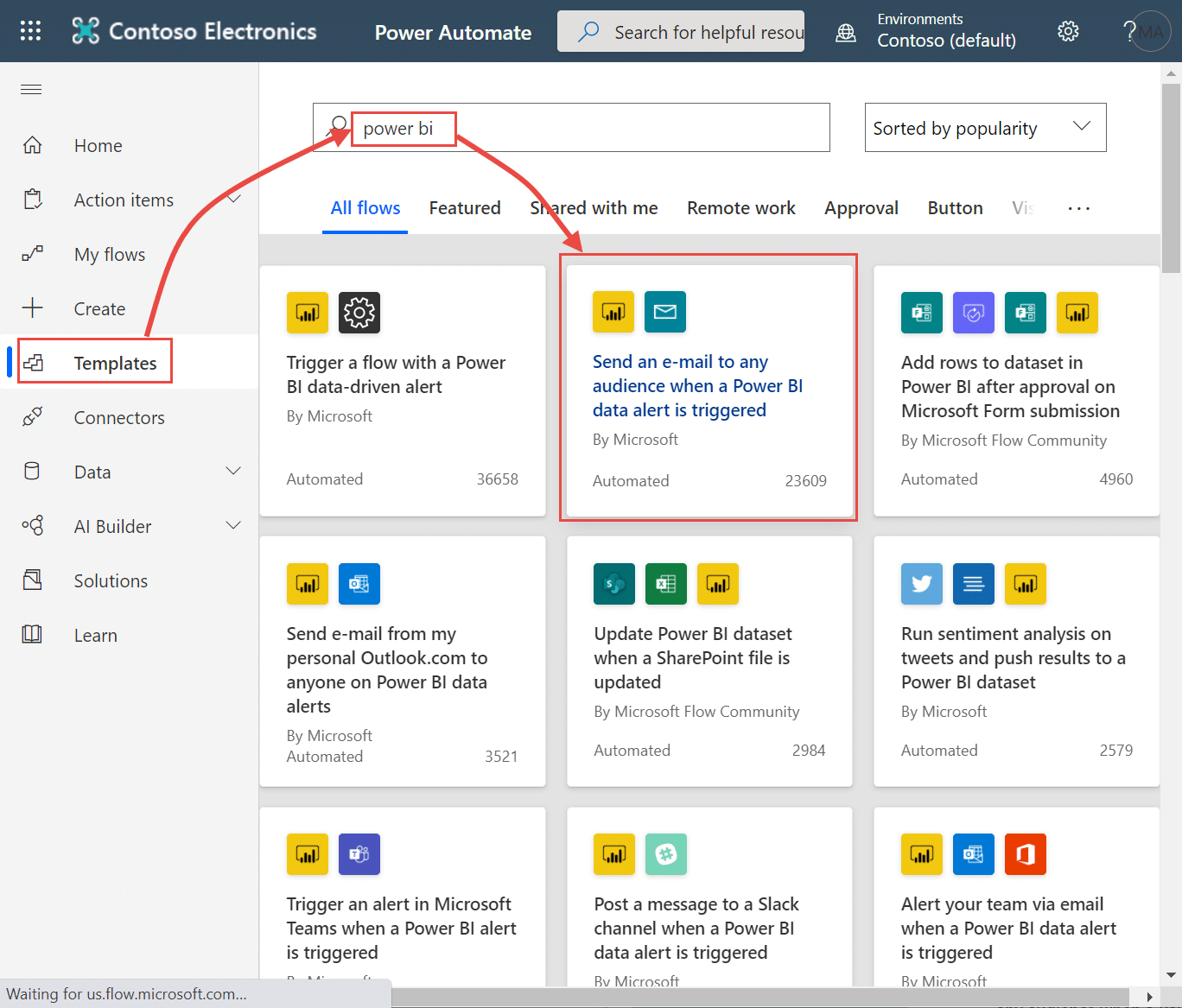
This template consists of one trigger, a Power BI data alert, and one action, sending an email. When you select a field, Power Automate displays the dynamic content you can include. In this example, we have included the value and the URL of the tile in the message body.
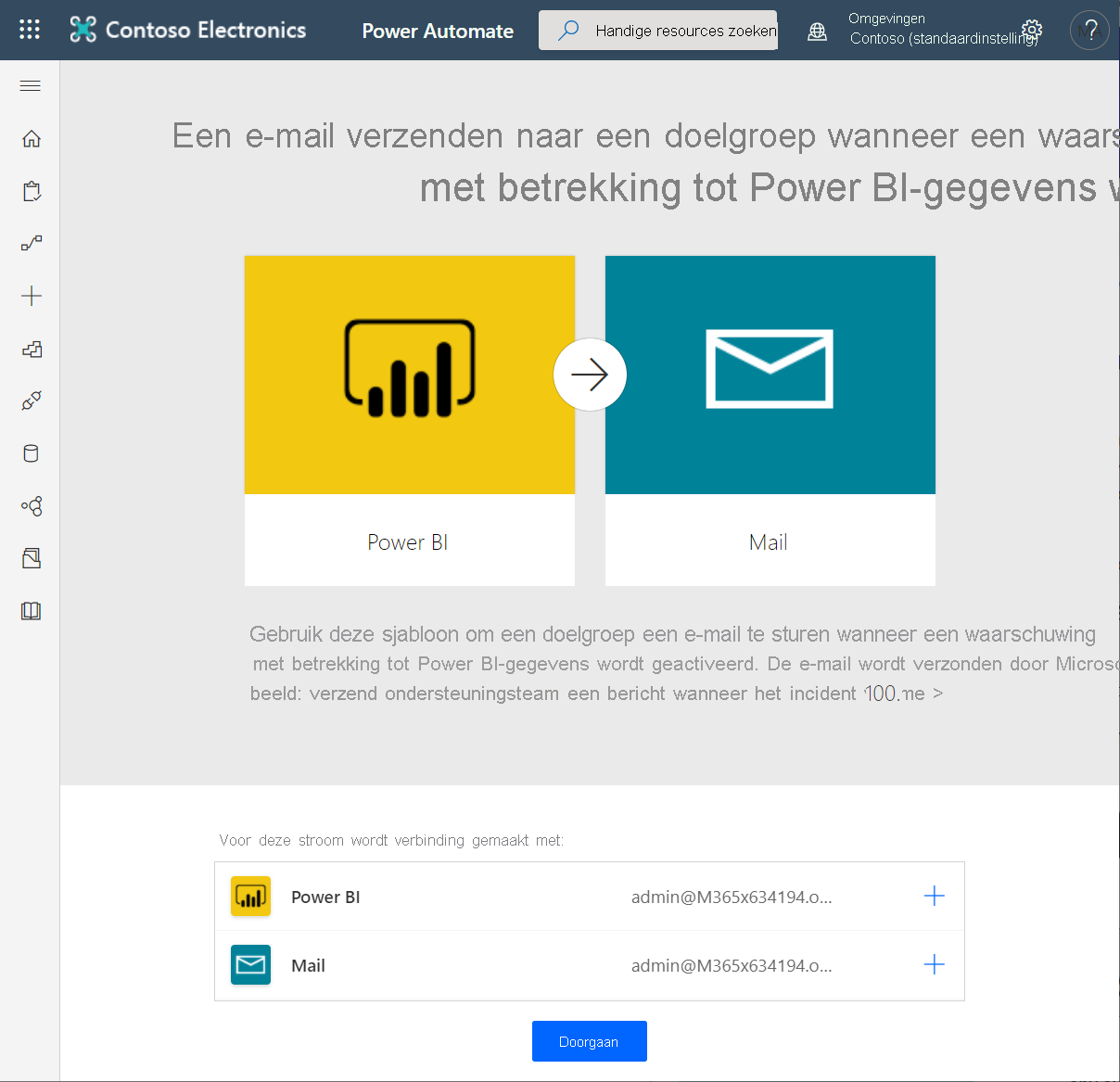
Step 3: Select Continue.
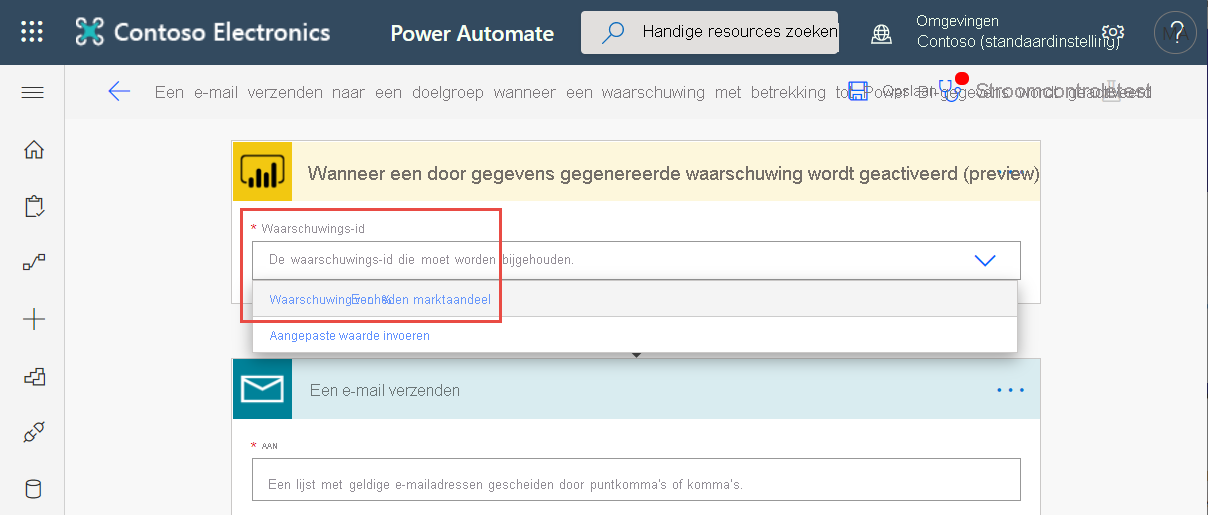
Step 4: In the Alert Id box, select a Power BI data alert (go to this link if you want to learn more about creating an alert).
Step 5: Enter one or more valid email addresses.
Step 6: Power Automate automatically generates a subject and body text for you, which you can keep or edit. The body text uses HTML for formatting.
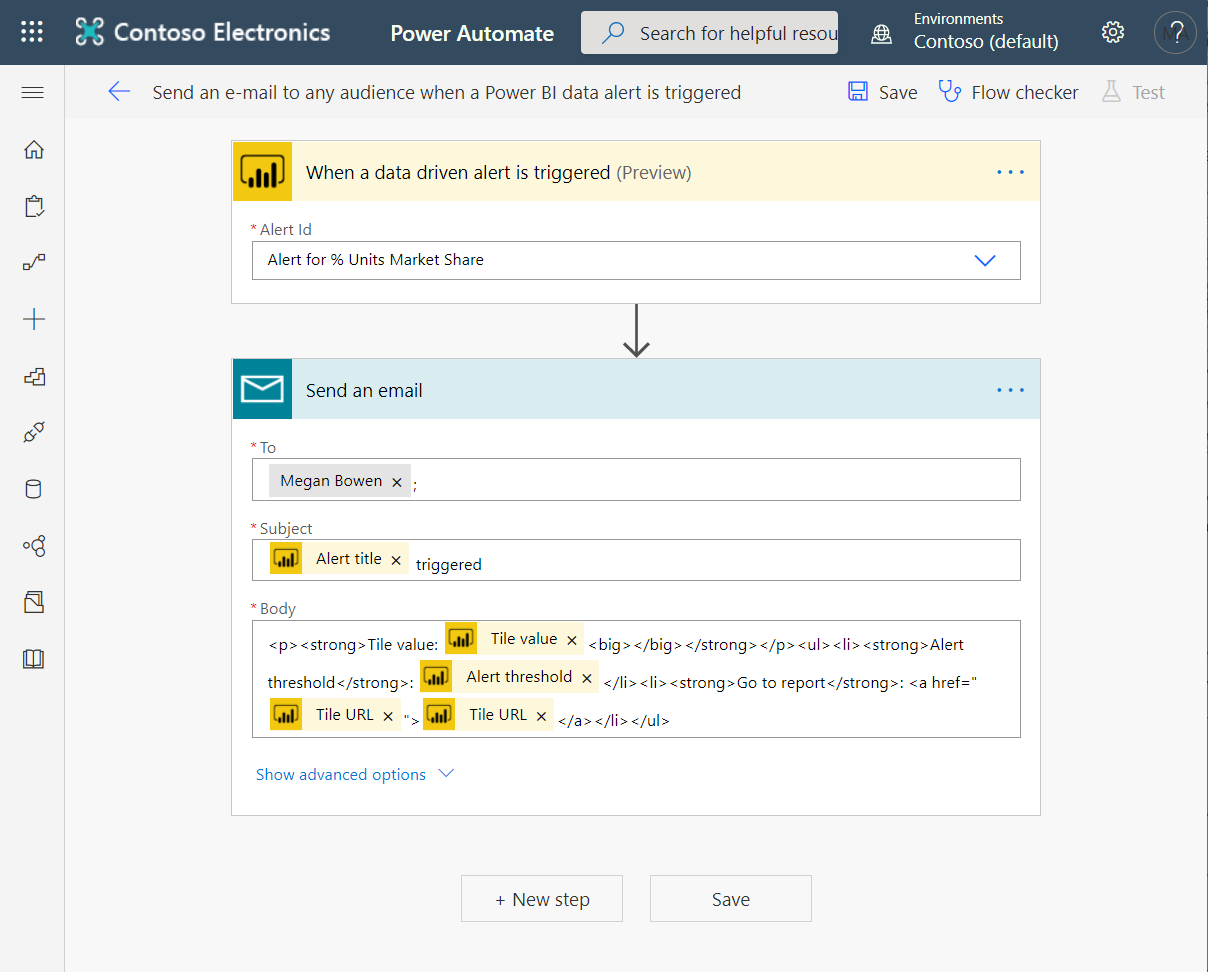
Step 7: When you have finished the message, click Next step or Save. The flow has now been created and evaluated. If any errors are found, you will receive a notification in Power Automate.
Step 8: If errors are found, select Edit flow to correct them. Otherwise, select Done to run the new flow.

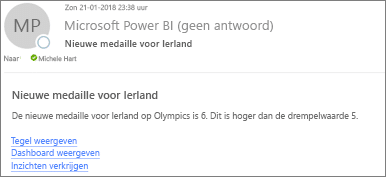
Step 9: When the data alert is triggered, Power Automate sends an email to the address you specified. It looks like this:
Want to automate other processes? The following topics are explained step by step in detail on Microsoft's documentation pages:
- Export and email reports with Power Automate
- Export paginated reports with Power Automate
- Save paginated reports to OneDrive or SharePoint Online
- Export paginated reports from Excel Online or a SharePoint list
- Save a paginated report to a local folder
- Add a Power Automate visual button
Power Automate visual
Microsoft recently made it even easier to use Power Automate with Power BI. You no longer need to leave the Power BI application when you want to use Power Automate. You can now simply work with Power Automate inside Power BI thanks to the Power Automate visual.
When you add this visual to your dashboard, the interface looks similar to Power Automate online. The visual lets you easily create your own flows without leaving Power BI.

Want to know more about Power BI & Power Automate?
Are you interested in adding Power Automate to Power BI and do you need help with it? Or would you like to meet one of our account managers to discuss the possibilities of the Power Platform? Then get in touch with Kees or schedule a (no-obligation) introductory meeting right away via our online calendar.
Stay up to date
Don't want to miss a single blog? Then sign up for our newsletter. You will receive all the latest content straight to your inbox every month. You can sign up using the button below.
