8 min read
6 ways to use Power BI in Teams (incl. how-tos!)

Microsoft Power BI and Microsoft Teams are two widely used Microsoft products. Yet not many people know that you can also use Power BI (Pro) in Teams. Since October, you can even use the complete Power BI application via Teams. This opens up some great possibilities. In this blog, we walk you through the options.
Power BI Pro & Teams
To use the Power BI application within Teams, you need a Power BI Pro licence. The exception is when the reports you want to view are in a workspace that sits within a Power BI Premium environment. It is also important to give the person who will be using the report access to the relevant app or workspace.
Want to see an image in more detail? Click on it and it will open in a new tab.
#1 Adding the Power BI app to Teams
A newer feature of Power BI and Teams is the ability to add the entire Power BI app to Teams. When you add Power BI to Teams, the app appears in the navigation bar on the left. This is of course extremely handy if you are a heavy user of both Power BI and Teams. You never have to switch between the two programs again. From the Power BI app within Teams, you can use all the features you would normally use in the desktop version of Power BI.
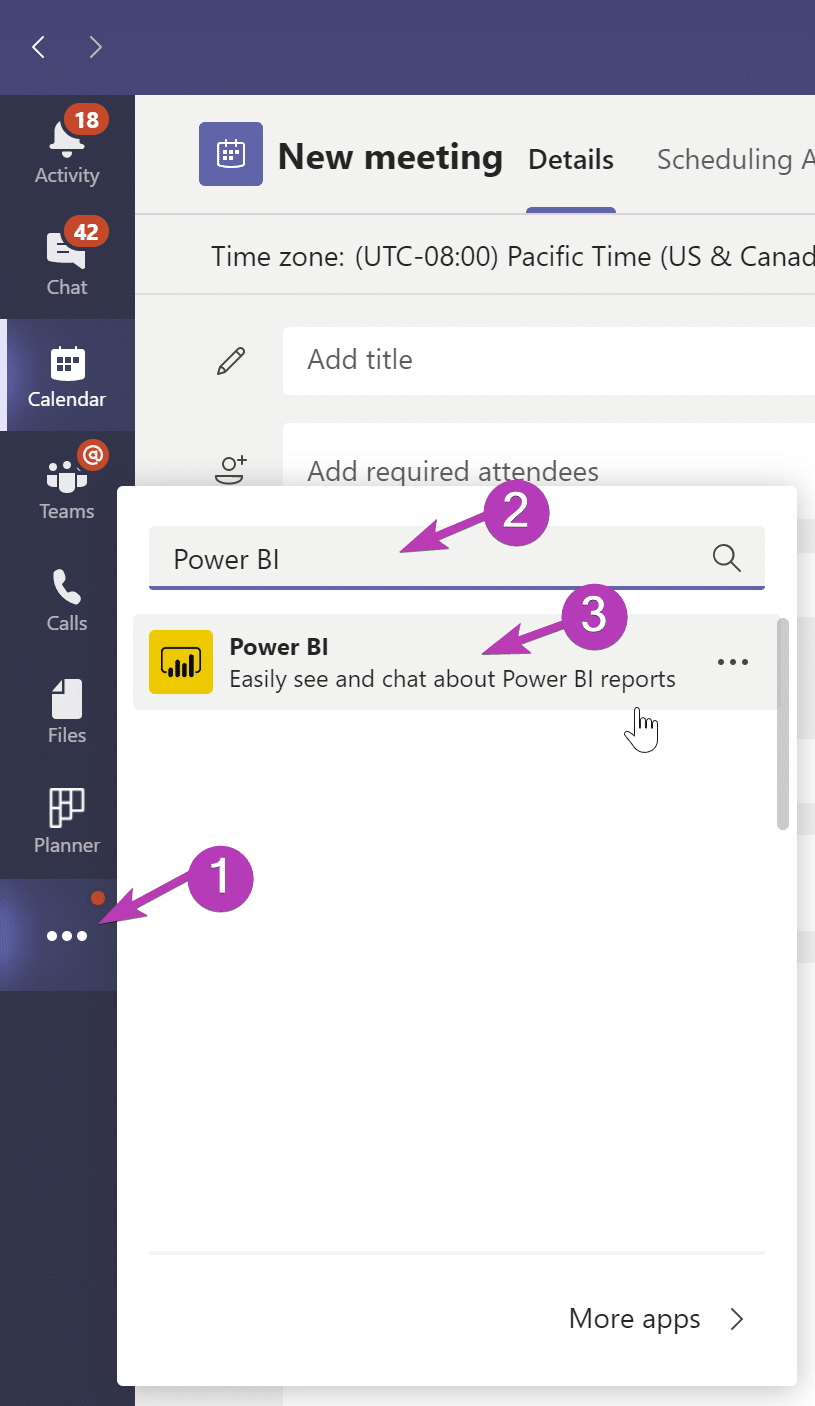
To add the Power BI app to Teams, follow these steps:
- Click the three dots on the left in the navigation bar (‘…’)
- Type Power BI in the search bar and then click on it
- A new window opens, where you click ‘Add’
- Power BI is now in your navigation bar!
Please note!
The Power BI app is not automatically pinned to the navigation bar. So if you then go to another chat or team, the Power BI app disappears from your navigation bar. To pin the app, right-click the Power BI icon and click ‘Pin’. The app is now pinned to your navigation bar.
#2 Automatically installing and pinning the Power BI app in Teams
Please note: Only Tenant Admins and Teams Admins can set up this feature!
For many organisations, it is important that employees have quick access to the data they need. Yet it often remains difficult for them to know where to find that data. Organisations can now pin the Power BI app to the Teams navigation bar by default for their employees. Whenever they open Teams, the Power BI app is always in their navigation bar.
Below, we explain step by step how to do this:
- Go to the Microsoft Admin Center via the Office Portal or go to admin.microsoft.com
- In the navigation bar, go to ‘Show All’
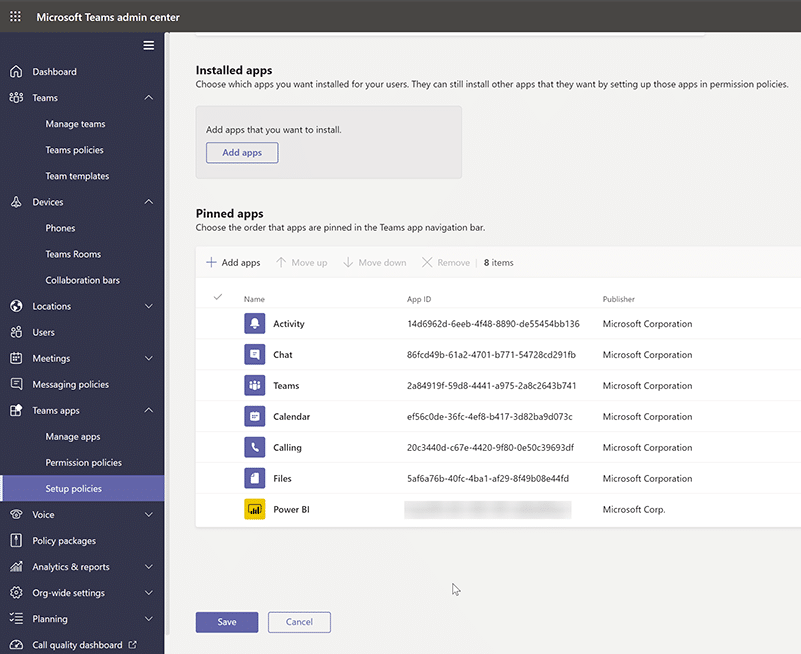
- Then go to ‘Teams’ > ‘Teams Apps’ > ‘Setup Policies’ > ‘Global’
- Then click Installed Apps > Add Apps > Power BI > Choose the one with the new Power BI icon
- Then go to Pinned Apps > Add App > Power BI
- Finally, don’t forget to click ‘SAVE’
- Please note! It can take a few hours before users actually see the Power BI app in the Teams navigation bar
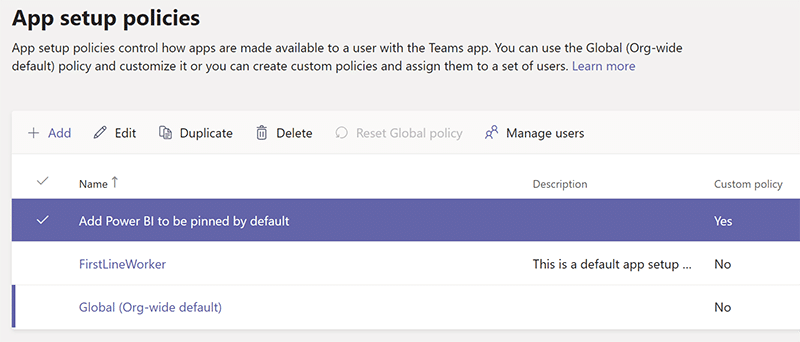
Tip: You can also create a ‘Custom Policy’. When you do, a copy of the Global version is made and you can then change things in the custom variant. It is important to know that you do need to assign users to this Custom Policy. You do this from the main App Setup Policies screen using the Manage Users button. You cannot add groups here, so you have to add individual users each time.
Please note! You can only use the features below if you have already added the Power BI application to your navigation bar. If you have not done so yet, these features are not available. Number 1 explains how to add the Power BI application to your navigation bar.
#3 Adding a Power BI report to a chat/team
The first option we want to walk you through is adding a Power BI report to, for example, a chat or a team. This makes it easy for you and your colleagues to go through a particular report together.
The report remains fully functional within Teams. So you can select data and adjust it to how you want to see it. This functionality even goes so far that Row Level Security features simply keep working. So if one of your colleagues does not have access to a particular dataset, for example, that colleague will not see it in the report either.
Below, we explain how to add a report to a chat or team:
- Press the ‘+’ button at the top of the chat or team
- Click Power BI
- Find the report you want in your Apps or Workspaces
- Select the report and click ‘Save’
- You also have the option to choose ‘Post to the channel about this tab’; a message with a link is then posted so people know you have added a report to the chat/team.
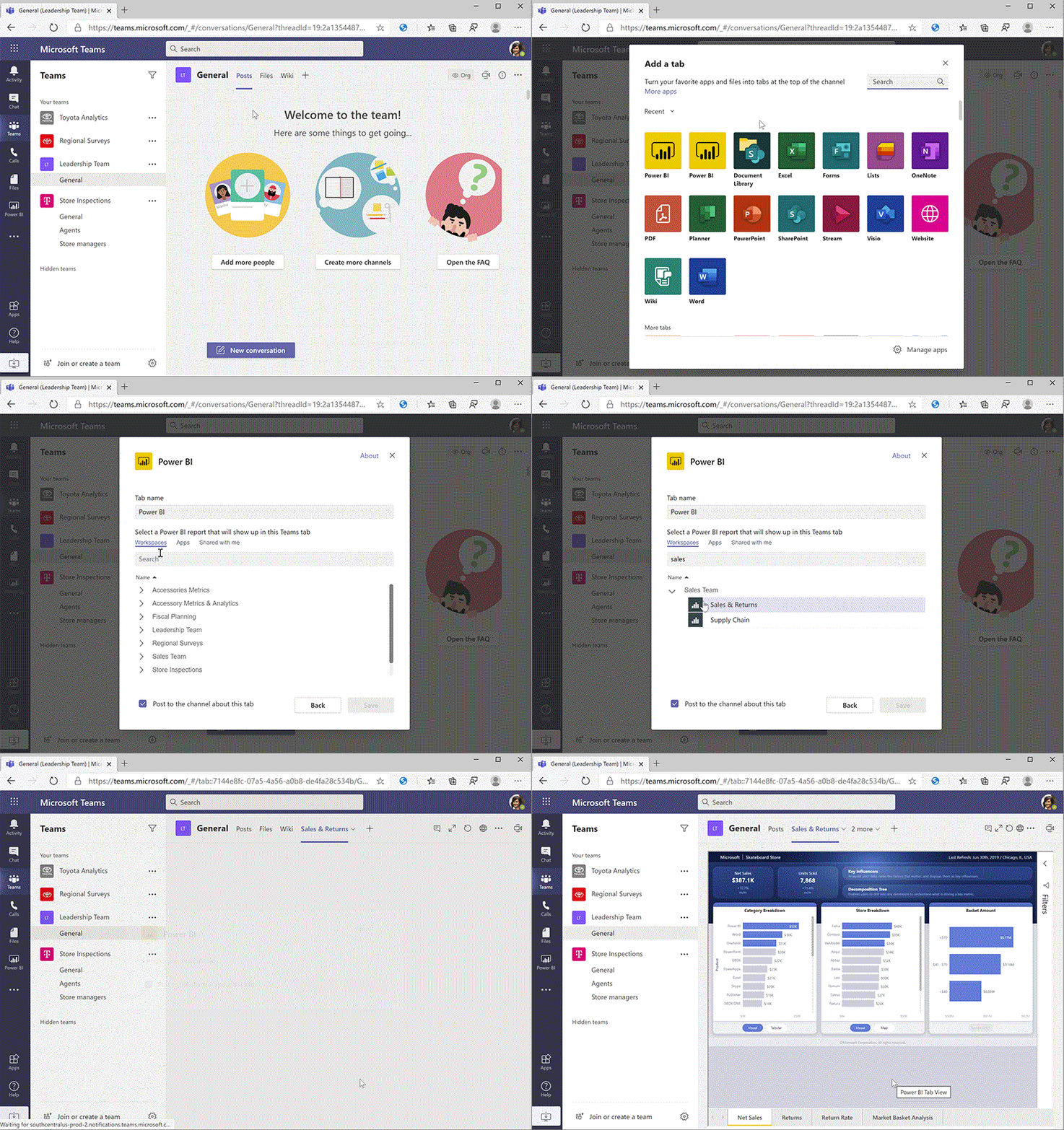
Would you rather view the whole report in your browser? You can. When you click the ‘globe’ at the top, the report opens in your browser.
#4 Searching for your Power BI report via the Teams search bar
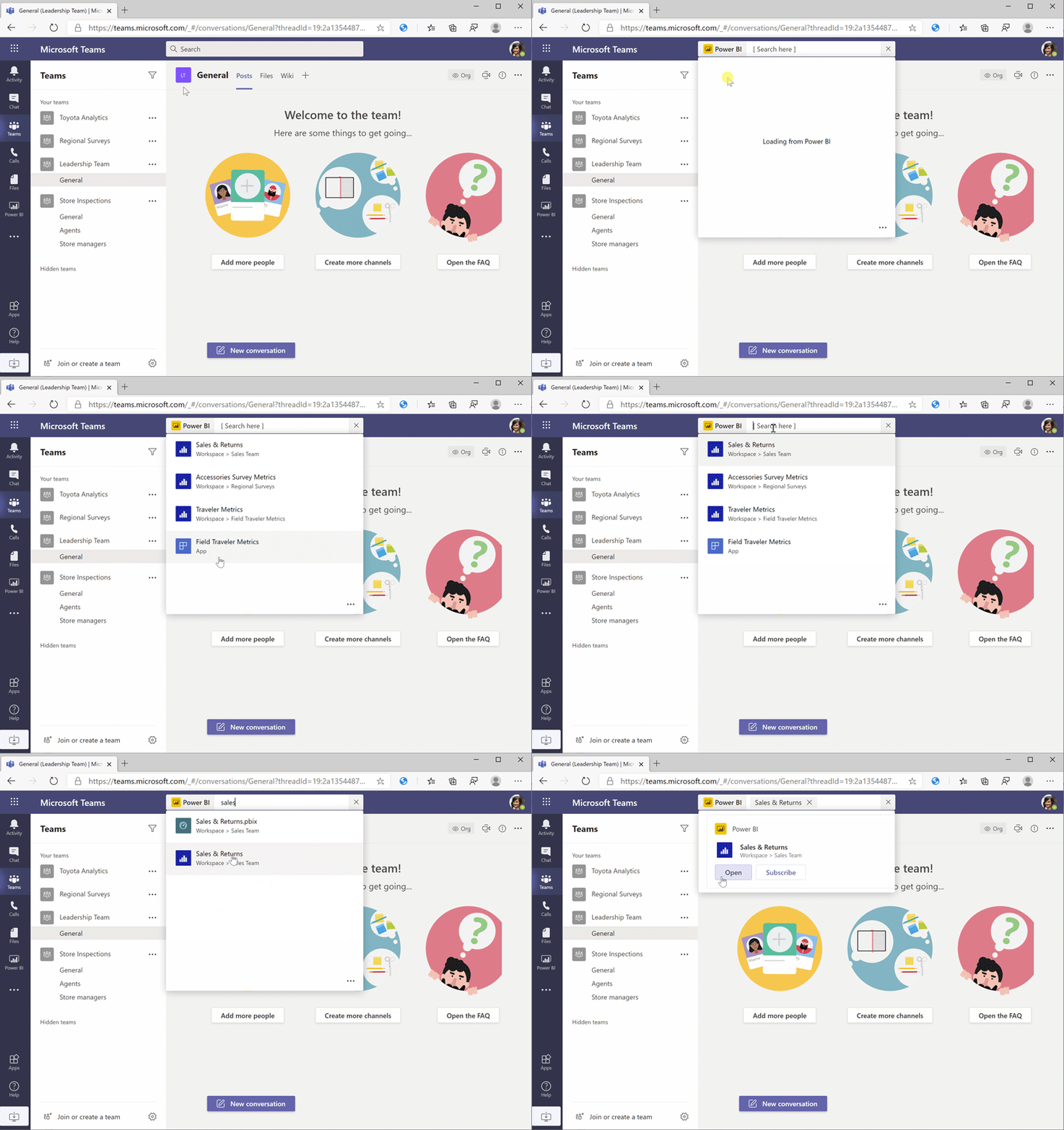
In the middle of a conversation with a colleague and want to quickly look something up in a report? With Teams, you can also use the search bar to search for recent reports and apps in Power BI. The chosen report or app then opens within the Power BI app in Teams!
Below, we explain how to do this:
- Go to the Teams search bar
- Type ‘@PowerBI’
- Choose an item from the list or type a search term
- Select the item
- Click ‘Open’
#5 Quickly sharing a report, dashboard or app in a chat or team
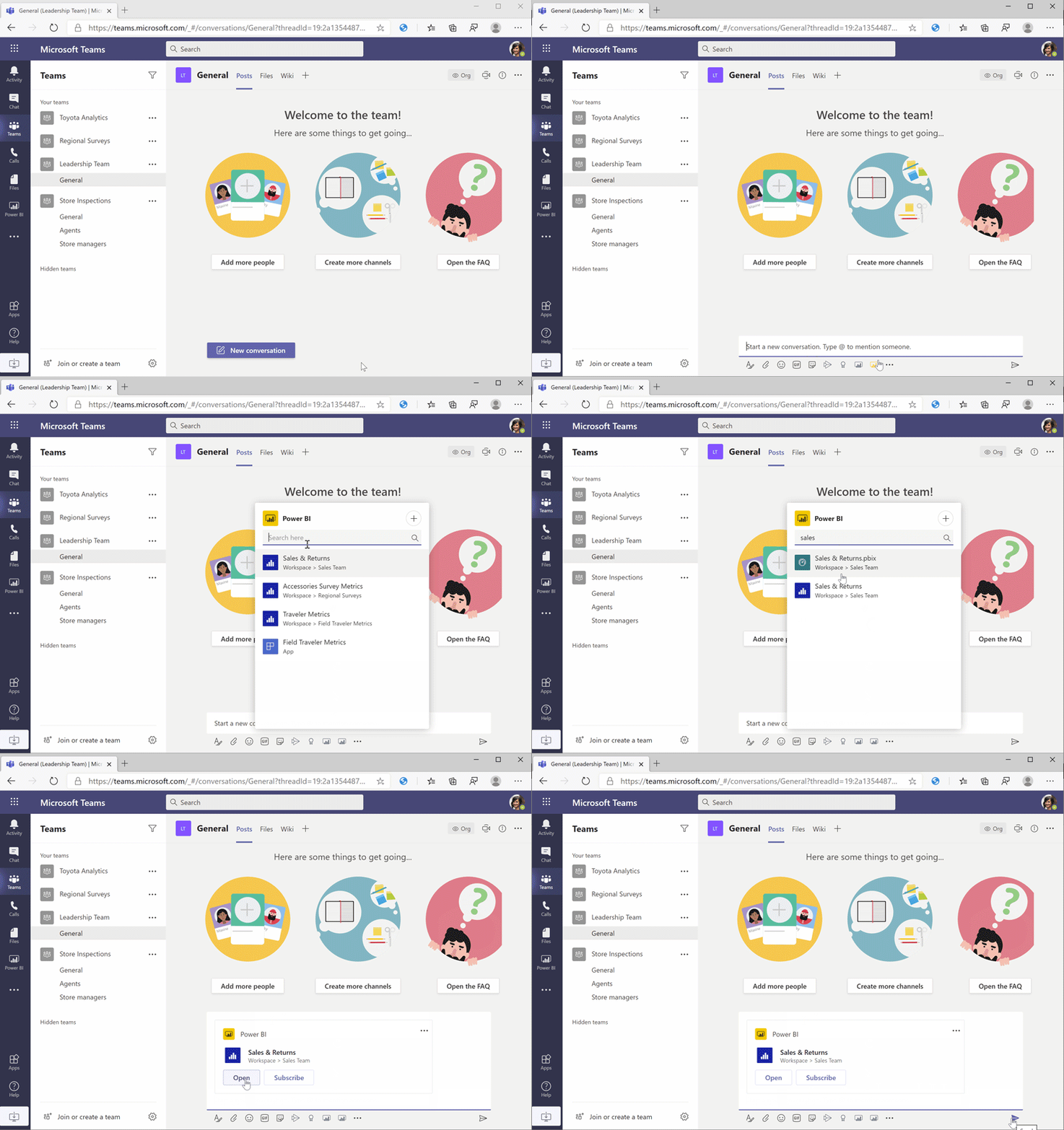
Thanks to the integration of Power BI in Teams, it is now easier than ever to share a dashboard or app with your colleagues. You don’t even have to leave the application!
Below, we explain how to do this:
- Find the Power BI icon at the bottom of the chat box
– If it is not there, click the three dots (‘…’ ) and search for Power BI - In the menu that opens, find the report, dashboard or app you want to share
– By default, you will see your most recently used items here - A preview card is added to your message
- Type your message or hit send straight away so your colleagues receive the link
- When one of your colleagues now clicks the link, it opens in the Power BI app within Teams
You can also use this feature when you are in a meeting and want to share a report, dashboard or app with your colleagues. You do this in the same way as described above. To do so, the chat box does need to be open, so don’t forget to open it first!
Please note: the first time you use this feature, you will need to sign in
#6 Starting a chat in Teams from the Power BI app
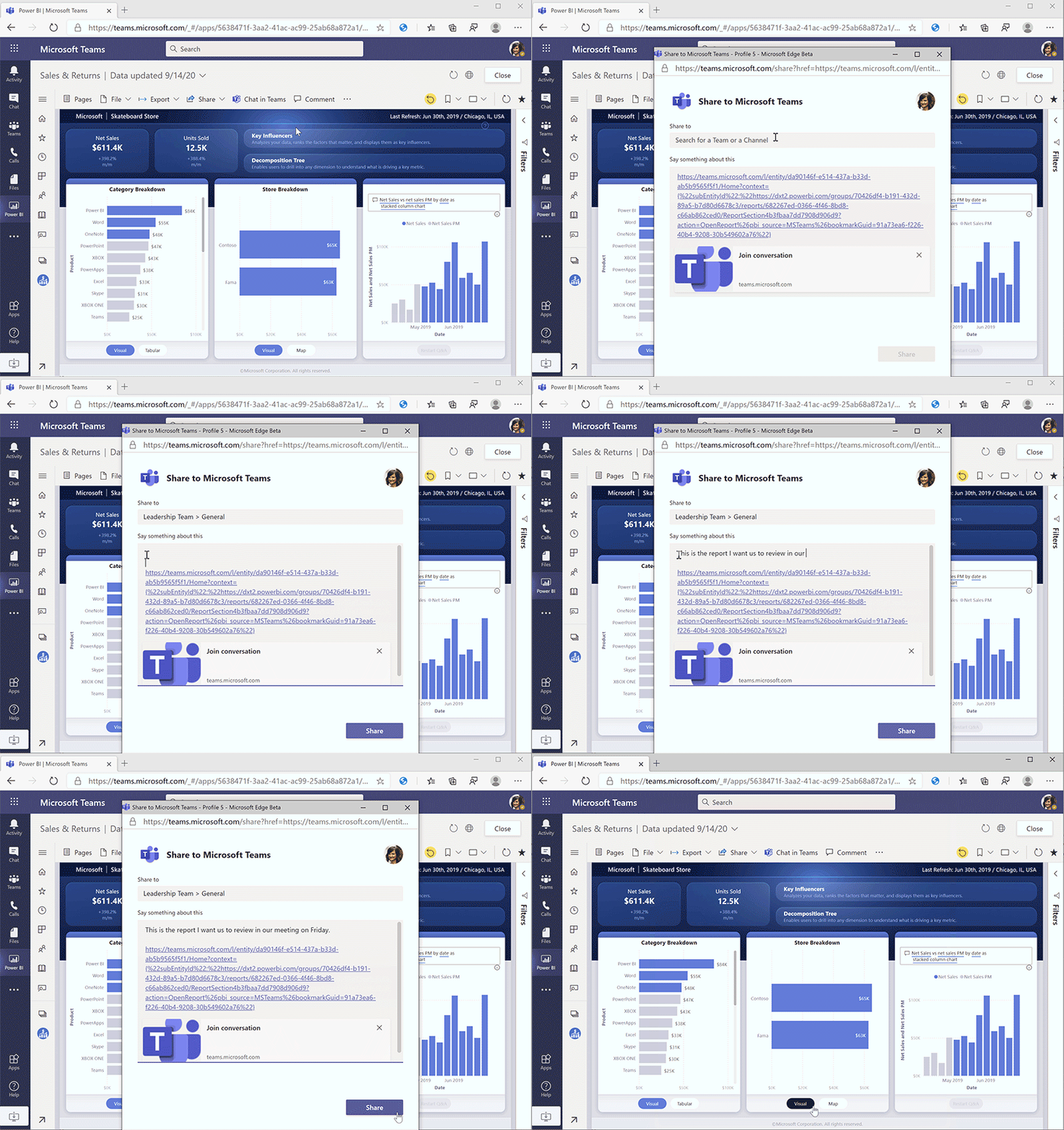
Working on a report and want to quickly share an insight with your colleagues? With ‘Chat in Teams’, you can easily send links to reports and dashboards from Power BI directly to specific people, teams or meeting chats. The links retain all the filters and slicers you have applied in your Power BI report. So when the recipients of your message open the link, they see exactly what you see. The link opens in the Power BI app within Teams.
Below, we explain step by step how to do this:
- Open a report, app or dashboard in Power BI
- Click ‘Chat in Teams’
- In the window that opens, search for the channel or meeting you want
- Click ‘Send’
Please note: you may first need to click ‘share’ to give the recipients access to the item. You can also do this afterwards, once you have already shared the item.
Tip: The ‘Chat in Teams’ feature is also available in the menu of the visuals in the report; when you click the three dots (‘…’), you will see the option. When you use this option, the visual will be highlighted when users open the link. Another nice tip is to put the visual in focus mode and then click ‘Chat in Teams’. When your colleagues open the link, they will see the specific visual you want them to see.
Want to learn more about Power BI?
Has this blog got you excited about Power BI, and would you like to learn more about this BI tool? Then sign up for the free (online) Power BI Basics training. You can sign up using the button below.
Stay up to date
Don't want to miss a blog? Then sign up for our newsletter. You'll receive all our latest content straight to your inbox every month. You can sign up using the button below.
